Your patch, your gear and your cues — on the show everyone else is reading.
Inputs, outputs, sound config files and the RF plan live on the audio department's own sheets. The cues you are on are tagged on the rundown, so the phone in your pocket shows yours instead of all of them.
A1, A2, monitors or crew chief — you arrive with a patch in your head and a case count in your pocket, and you spend the first hour finding out which of the two the rest of the show agrees with. What you want from software is a single answer to 'what did we say' that the shop and the producer are also looking at.
- Your sheets are department-owned: patch, inputs, outputs, sound config files
- You care which of your cases actually left the shop, not which were listed
- On show day you want your cues, not the whole rundown
Departments — Audio
Show Ops
Your card, and the four things on it: how many of your sheets are done, how much gear is on the event, how many of your crew have checked in, and how many tasks are still open. The tabs on the card are the sheets themselves — Patch, Inputs, Outputs, Sound config files. They sync both ways with Advance → Production, so the version the venue was sent and the version on the deck are the same version.
More on Show Ops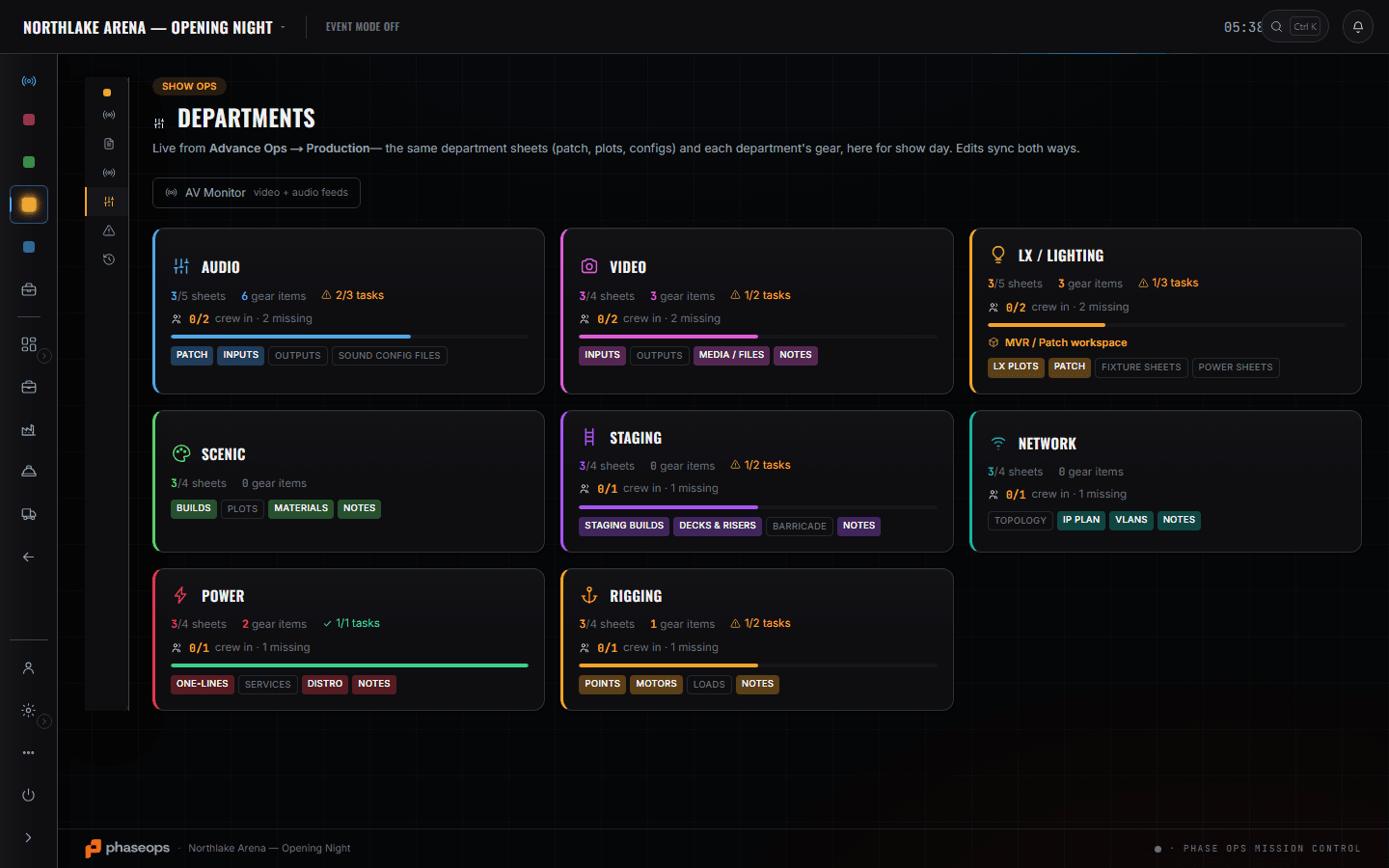
You start on your own card in Departments, because patch, inputs, outputs and the sound config files are the paperwork the rest of the show reads about you. Signal Ops is the level above that: the split you agreed with video is one edge on the show's graph rather than two sheets that disagree by Thursday. Edit Mode is where a cue gets tagged Audio, and that tag is what makes the phone in your pocket show your cues instead of everybody's. The Gear List answers the case-and-truck question — which box the FOH rack is in, which truck it rides — on the event record rather than by ringing the shop. On the day it is the crew phone and nothing else.
What you open, and what it answers.
Signal Ops — the wiring graph
Signal Ops
Sources, converters and destinations drawn once for the whole show, cross-department by design. Your audio sheet is a viewport over that graph rather than a copy of it, so the split you agreed with video is one edge on one drawing instead of two lists that disagree by Thursday.
More on Signal OpsShow Ops — Edit Mode
Show Ops
Where a cue gets Audio / Sound tagged onto it. That tag is the mechanism behind everything the crew phone does for you later — it is not decoration on the rundown.
More on Show Ops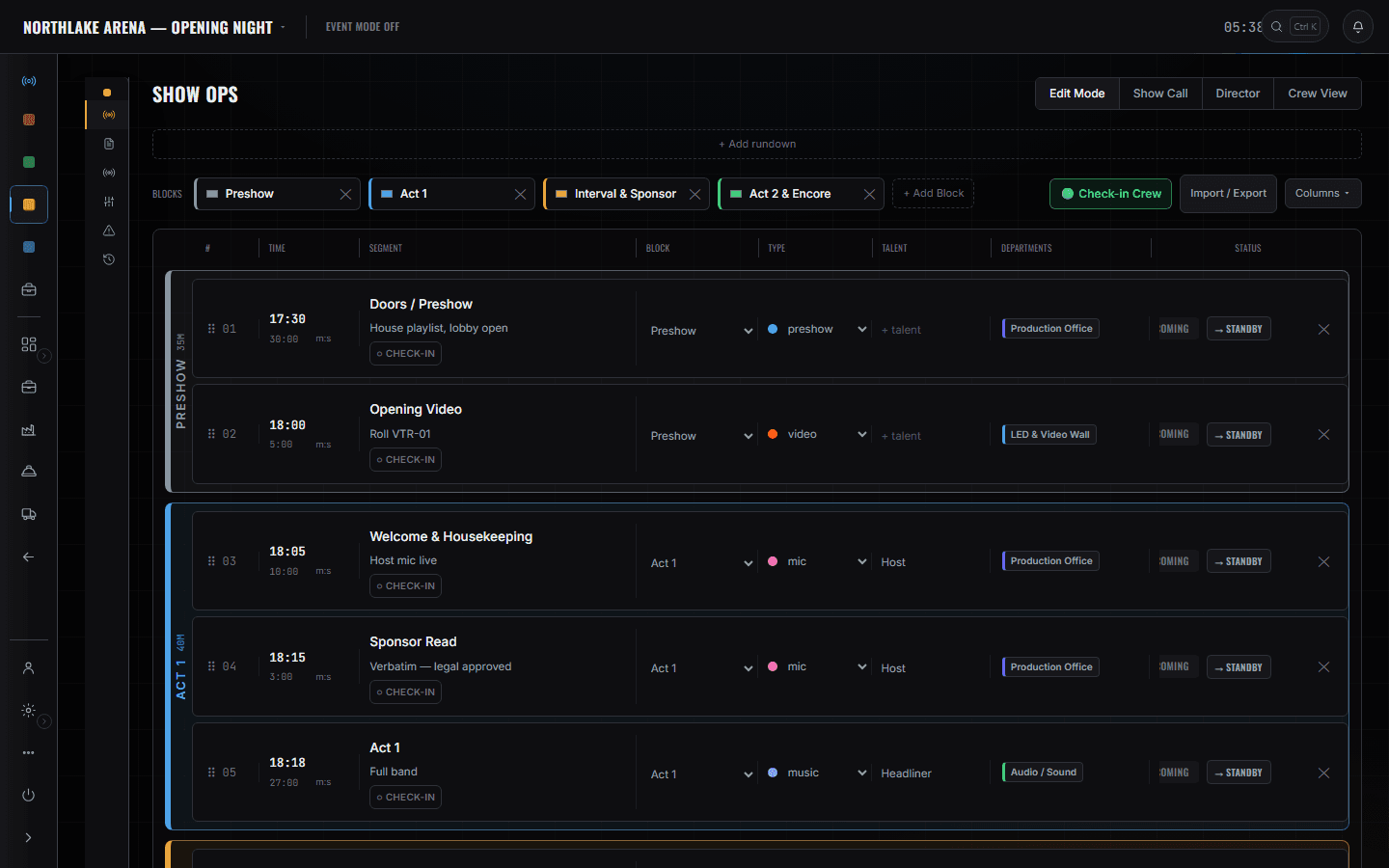
Your cases and which truck they ride
Build Ops
The event's own gear list, with a CASE column and a TRUCK column on every line and a By Case grouping across the top. That is the audio question — which case is the FOH rack in, and which truck is it riding — answered on the event record rather than by asking the shop. The pulled count is on the same row: '6 of 8 pulled' on a radio mic channel is the number you want before you leave.
The crew phone
Crew portal
Your call times and meals, and during the show the cue that is live with a filter for your own department — so an A2 on deck sees audio cues coming rather than scrolling the whole running order.
More on Crew Ops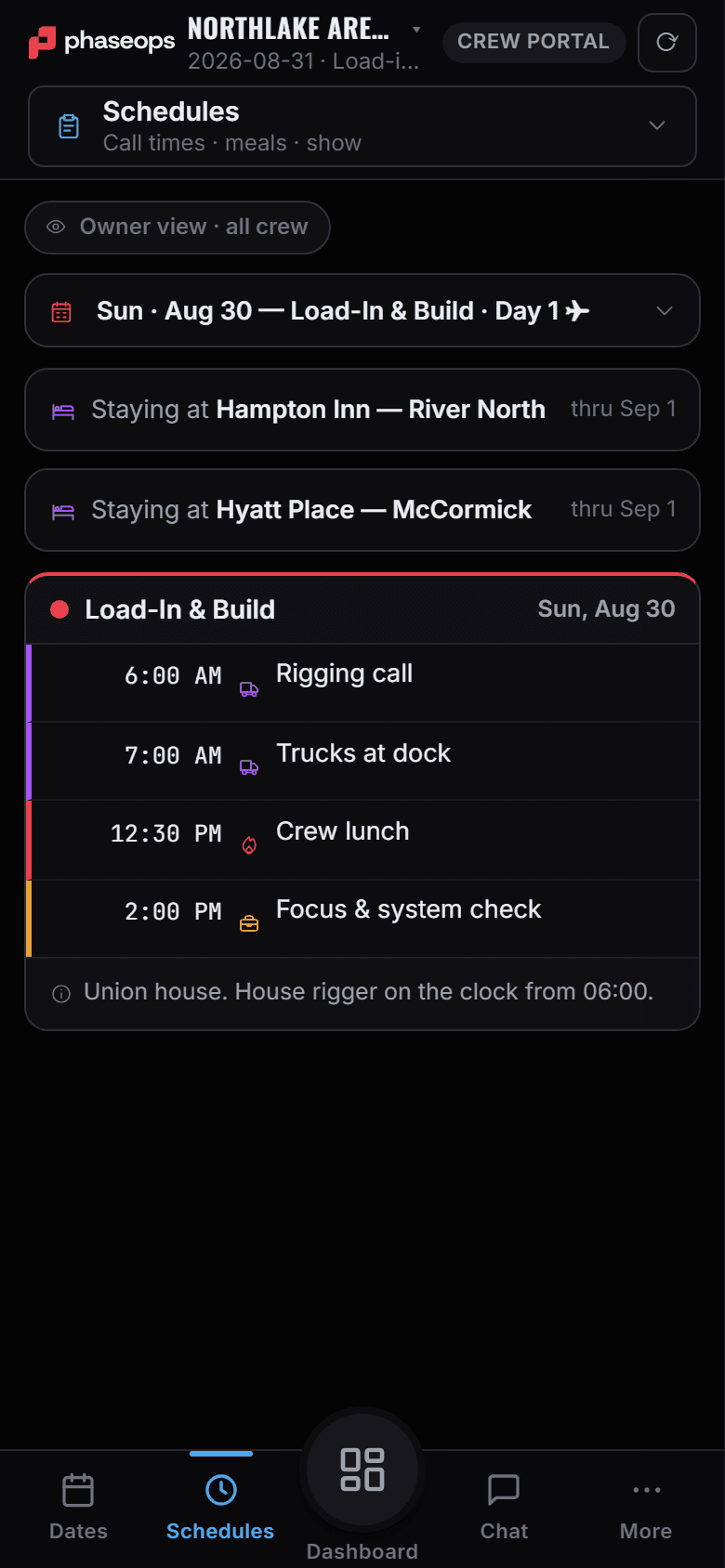
The boundary, before you find it yourself
Worth knowing now rather than at 16:00 on a load-in day.
Your console
Nothing here talks to a desk, a stagebox or a DSP. The patch sheet is paperwork that agrees with itself, not a control surface.
The shop's pull sheet and the warehouse
Pull sheets, pairing, RFID and shelf locations are the shop tech's screens. Your gear question is which case and which truck, and that is on the event's own gear list.
The LX workspace and the MVR rig
Lighting's plot, patch and fixture import are lighting's. You will see LX on the rundown and on the gear list; you will not be sent into their workspace.
Flights, hotels and Auto-Book
Travel is booked by whoever is managing the tour. You read your own call times on the phone.
The money
Rates, invoices and event margin sit on the same record and none of it is your screen.
The call
You read the cue pointer. You do not move it.
There is no RF coordination. No frequency solver, no scan import, no coordination pass — the RF and IEM plan is a sheet you write and the show reads, and a room with sixty channels in it still needs the tool you already own.
Load-in, show, load-out.
- PrepCheck the pulled count on your lines before the truck is closed.Build Ops · Gear List
- Load-inRead the case and truck columns on your own lines instead of opening every box on the dock.Build Ops · Gear List
- BuildPatch and inputs onto the department sheet, once, where the venue copy came from.Show Ops · Departments
- BuildThe split with video is one edge on the show's wiring graph, not two lists that disagree.Signal Ops
- Pre-showCheck in from the phone so the caller's readiness check is not failing on you.Crew portal
- LiveWatch your own cues arrive, filtered to audio.Crew portal · Live
- Load-outYour cases go back on the truck they came on. The shop scans them home; that part is not your screen.Build Ops · Gear List