Builds, materials and drawings on one sheet the shop can also read.
The scenic department's sheets are builds, plots, materials and notes. The build schedule turns them into dated rows with an owner and a status, so a deck that is not ready is visible before the department that needs it turns up.
Carpenter, charge hand, build lead or automation. Half your work happened in the shop weeks ago and the other half happens on a loading dock at six in the morning, and the two halves have to agree about what was actually built. Your dependencies are everyone else's start times.
- Your build is the thing other departments are waiting on
- Your materials list is a shop document and a site document at once
- A blocked item costs the whole load-in, not just your department
Build Schedule
Build Ops
Every build item with a date, a time, an owner and a department, grouped by priority. Done, in-progress and blocked are states on a row — and the header carries the count, the percentage and the estimated time remaining rather than a vibe.
More on Show Ops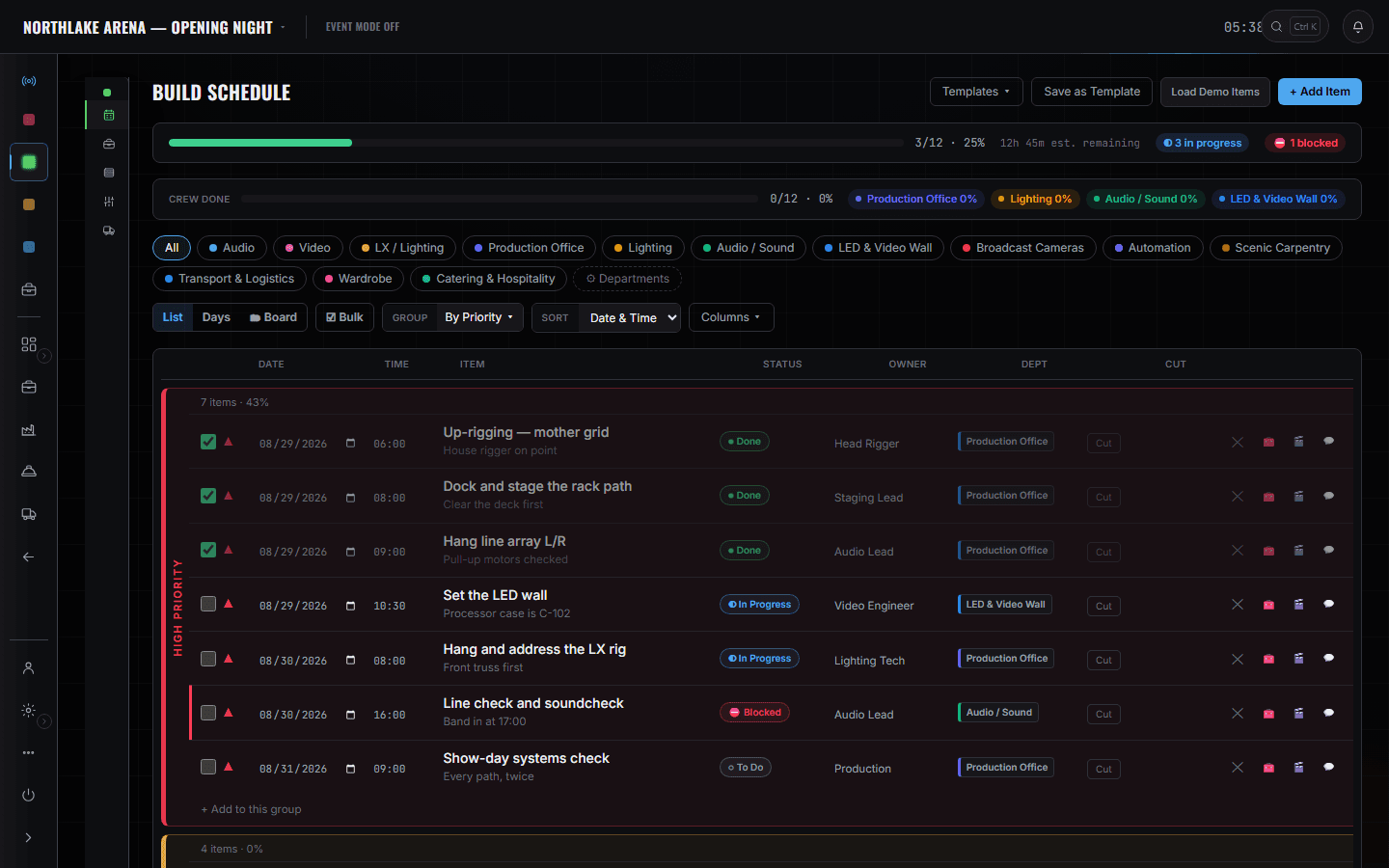
Half your work happened in a shop weeks ago, so the Build Schedule is the screen that makes the two halves agree: dated rows, an owner on each, and a status other departments are reading because they are waiting on you. Your Departments card carries builds, materials and notes as one document the shop and the site both work from, rather than a drawing and a photograph of a drawing. The Gear List is decks, risers and barricade with a case and a truck against each — you go on first and come off first, and the truck a piece rode in on decides that. Edit Mode matters on the shows where a set move happens between two segments and somebody has to be told it is coming. The crew phone is the rest: call times, meals, and the order of the day.
What you open, and what it answers.
Departments — Scenic
Show Ops
Builds, plots, materials and notes as your department's tabs, with the sheet count on the front of the card. Edits sync with Advance → Production, so the shop and the site read one document.
More on Show Ops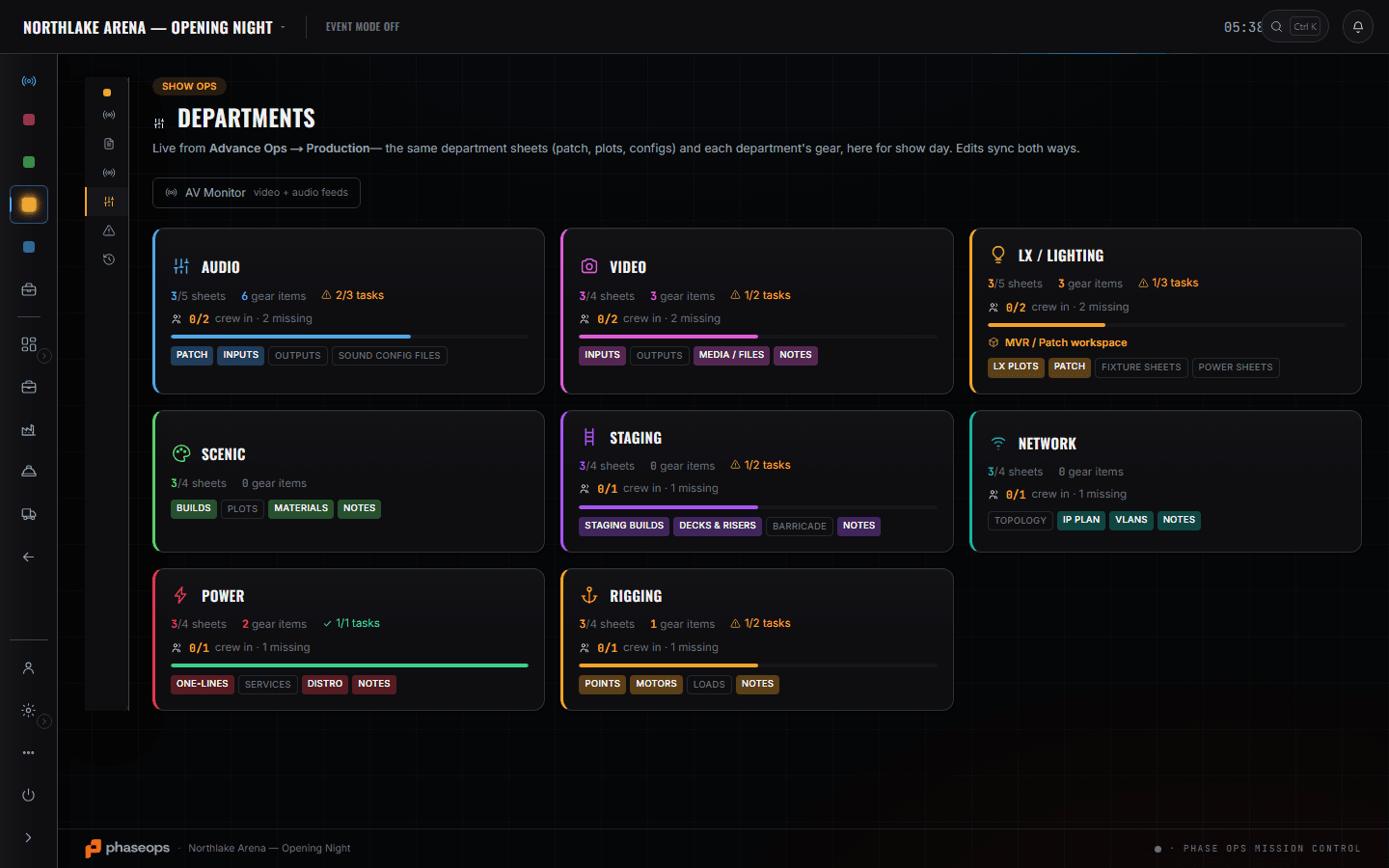
Show Ops — Edit Mode
Scenic carpentry is a department you can tag onto a cue — which matters on a show where a set move happens between two segments and somebody has to be told it is coming.
More on Show Ops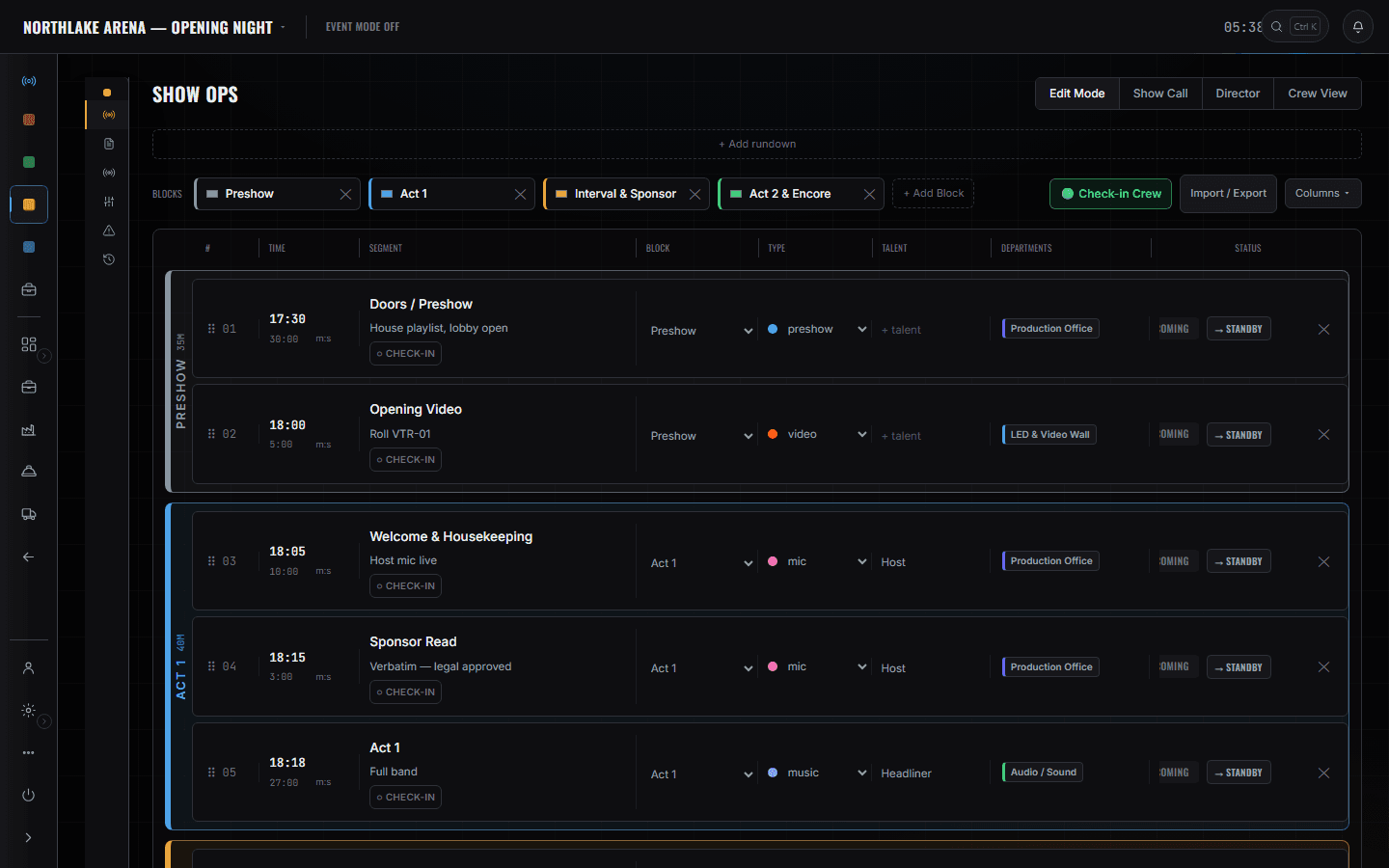
Decks and risers, by case and by truck
Build Ops
Decks, risers, barricade and the rest as event lines, each with a CASE column, a TRUCK column and a pulled count — so the difference between 'we own it' and 'it is on the truck' is a column rather than an assumption. Scenic goes on first and comes off first, and which truck a piece is on is the fact that decides that.
The crew phone
Crew portal
Call times, meals and the load-in order for the people doing the building, with hotels on the same screen.
More on Crew Ops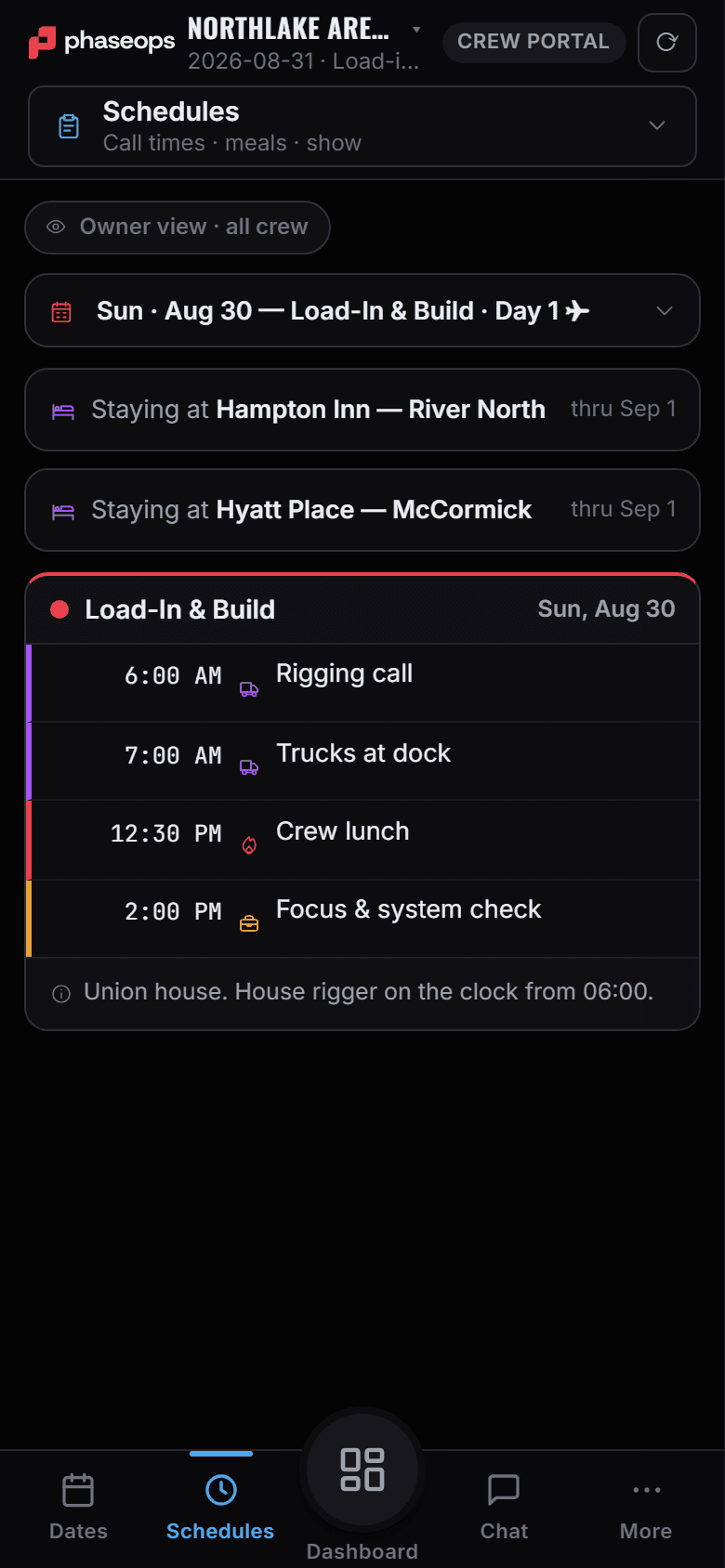
The boundary, before you find it yourself
Worth knowing now rather than at 16:00 on a load-in day.
Automation control
An automation tech is a seat on the call sheet here. Nothing in this product drives a winch, a track or a turntable.
CAD
Drawings are files attached to the event. There is no drafting tool in the department sheets and no DWG round-trip.
The shop's pull sheet and the racks
Pulling, pairing, scanning and put-away are the shop's screens. What you need off that world is which case and which truck, and that is a column on the event's own gear list.
The money
What the build cost lands on the event record. It is not your screen and it never asks you for a number.
The call
A tagged cue tells you a move is coming. It does not make it happen.
Load-in, show, load-out.
- In the shopMaterials and build notes onto the scenic sheet where the site copy reads from.Show Ops · Departments
- Leaving the shopYour pieces get cased and assigned to a truck; both show up as columns on your list.Build Ops · Gear List
- Load-in, 06:00Dock and stage the rack path is your first row; it goes done when the path is clear.Build Ops · Build Schedule
- BuildDeck and risers up. The rows behind you unblock the departments waiting on them.Build Ops · Build Schedule
- Pre-showCheck in, read the day sheet, know when the set move is.Crew portal
- LiveScenic-tagged cues on the phone, so a move is not a surprise.Crew portal · Live
- StrikeCome off in the order you went on — the truck a piece rode in on is on its row.Build Ops · Gear List